Asset Approvals – Return Requests
Last Updated: January 9, 2026
Document Version: 1.0
Prepared for: Emgage HRMS Implementation Team
The Asset Approvals – Return Requests tab enables authorized users to review and take action on asset return requests raised by employees.
This screen focuses on assets that are already allocated and are now requested to be returned.
Navigation Path
Asset → Asset Approvals → Return Requests
- When Asset Approvals is selected from the left sidebar, the All Requests tab opens by default.
- Clicking on Return Requests opens the Return Requests tab.
Available Tabs (Overview Only)
The Asset Approvals module contains the following tabs:
- All Requests
- Request Approval
- Return Requests
- Return Overdue
- Due List
This document covers only the Return Requests tab.
Return Requests – Overview
The Return Requests tab displays all asset return requests along with their allocation details, allocation type, return dates, and approval status.
Approvers can view return details, filter records, export data, and approve or reject return requests.
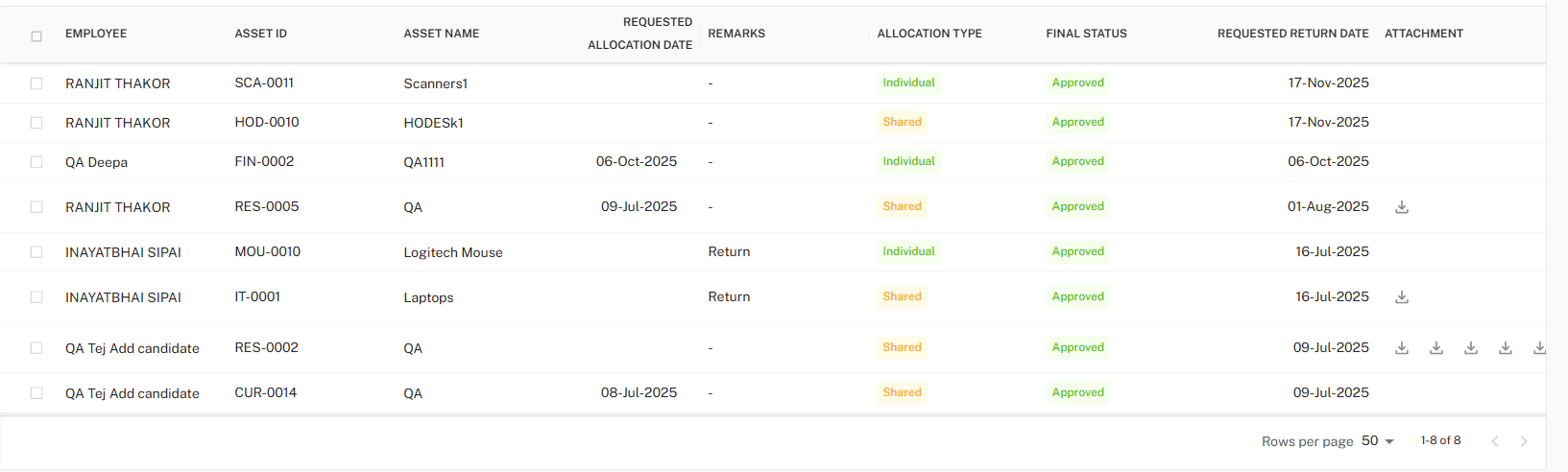
Return Requests Table
The Return Requests table provides a consolidated view of return-related records.
Table Columns
| Column Name | Description |
|---|---|
| Select Checkbox | Allows selection of one or more return requests for action. |
| Employee | Name of the employee requesting asset return. |
| Asset ID | Unique identifier of the allocated asset. |
| Asset Name | Name of the asset requested for return. |
| Requested Allocation Date | Original allocation date of the asset. |
| Remarks | Remarks provided during return request, if any. |
| Allocation Type | Indicates whether the asset is Individual or Shared. |
| Final Status | Current status of the return request (Pending / Approved / Rejected). |
| Requested Return Date | Date requested for returning the asset. |
| Attachment | Download icon to view uploaded supporting documents, if available. |
Status Indicators
The Final Status column visually represents the state of the return request:
| Status | Description |
|---|---|
| Pending | Return request awaiting action |
| Approved | Return request approved |
| Rejected | Return request rejected |
Row Selection Behavior
- Users can select single or multiple rows using checkboxes.
- Once selected, a selection summary is displayed at the bottom of the table.
- Clear Selection option is available to deselect all selected rows.
Approval Action Panel
When one or more rows are selected, the action panel becomes available at the top of the table.

Action Fields
| Field | Description |
|---|---|
| Remarks | Optional while approving a return request, but mandatory while rejecting a return request. |
Action Buttons
| Button | Description |
|---|---|
| Approve | Approves the selected return request(s). |
| Reject | Rejects the selected return request(s). |
Toolbar Controls
Located at the top-right corner of the Return Requests table.

Available Actions
- Export – Download return request data
- Filter – Open advanced filter panel
Export Data
Return request records can be exported for reporting and audit purposes.

Supported Formats
| Format | Description |
|---|---|
| CSV | Lightweight data export |
| Excel | Structured export for analysis and internal reporting |
| Static report format |
Filter Panel
The Filter panel allows narrowing down return requests using multiple criteria.
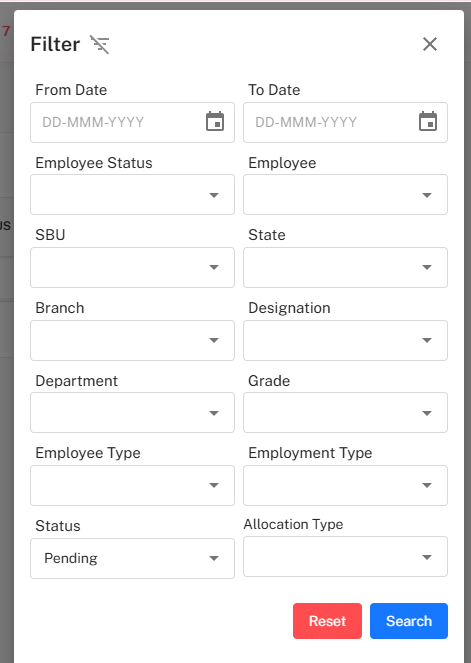
Available Filter Fields
| Category | Fields |
|---|---|
| Date Range | From Date, To Date |
| Employee Details | Employee, Employee Status |
| Organization | SBU, State, Branch, Department |
| Job Details | Designation, Grade |
| Employment | Employee Type, Employment Type |
| Asset Details | Asset Type |
| Allocation | Allocation Type |
| Status | Final Status |
Filter Actions
- Search – Apply selected filters
- Reset – Clear all filters
Key Behaviors
- Only asset return-related requests appear in this tab.
- Bulk approval and rejection actions are supported.
- Remarks are enforced when rejecting a return request.
- Pagination and row count controls are available at the bottom of the table.
Best Practices
- Verify asset details and allocation type before approving returns.
- Always provide clear remarks when rejecting a return request.
- Use filters to manage large volumes of return data efficiently.
- Export return records periodically for audit and compliance tracking.